![iPost-GRADIENT-1.png]](https://help.ipost.com/hs-fs/hubfs/iPost-GRADIENT-1.png?width=100&height=43&name=iPost-GRADIENT-1.png)
If you are interested in the Facebook Custom Lead Ad Integration, please contact your Customer Success Manager to have the integration enabled in your account.
Facebook User Permissions
Prior to configuring the Facebook Lead Ad functionality in your account, ensure that your Facebook user has the correct user permissions which must be a Named Page Admin. The Facebook login used for the Facebook Lead Ad should have access to all Facebook Pages and Facebook Forms associated with that client. Follow the steps below to ensure the correct permissions are established.
- Navigate to the created page in Facebook.
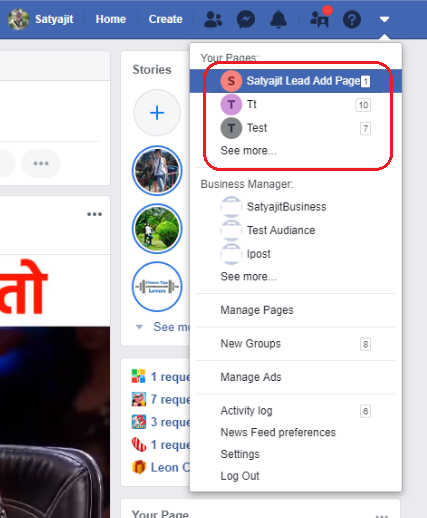
- Select Page roles from the menu.

- Under Assign a new Page role, confirm or add the user who should receive the Ad data.

Facebook Lead Ad Configuration
Once the Facebook Lead Ad integration has been enabled in your account, please follow these steps to finish the configuration.
- Access the Facebook Lead Ad option on the iPost Confluxery page from the General Settings menu.
- Click Login With Facebook to add your Facebook User credentials.
- Grant the iPost Application the required prompted permissions. Once your Facebook credentials have been added, the Facebook Lead Ads manager will populate with any pages/forms associated with that account.

- Select Data Mapping to map the Facebook fields to the iPost database fields.
- Check the Subscribed box next to any forms that will send data over to iPost.
- Select the associated list in the List dropdown for each form.
Facebook Lead Ad Manager
| Field | Description |
| Page/Forms | The Page and Forms retrieved from Facebook upon login. |
| Last Subscribed | The date the form was last subscribed to within iPost. |
| Subscribed | If the Subscribed box is checked, the contacts from the Facebook Leads Ad will populate the associated list. |
| List | The list that contacts from the Facebook Leads Ad are added to. |
Data Mapping
Facebook has standard fields as part of the Lead Ads functionality. The data in these fields can be added to iPost by mapping them to existing database fields. The data mappings configured will be applied to all pages/forms configured in iPost.
| Facebook Column Name | Description |
|---|---|
| Ad ID | The ID of the ad |
| Ad Name | The name of the ad |
| Adset ID | The ID of your ad set |
| Adset Name | The name of the ad set |
| Campaign ID | The ID of the campaign |
| Campaign Name | The name of the campaign |
| City | The contact’s city |
| Company Name | The name of the company the contact works for |
| Country | The name of the country the contact resides in |
| Created Time | The date/time the Lead was created |
| Date of Birth | The contact’s date of birth |
| The contact’s email | |
| First Name | The contact’s first name |
| Form ID | The ID of the lead ads instant form |
| Form Name | The name of the lead form in Facebook |
| Full Name | The contact’s full name (first and last) |
| Gender | The contact’s gender |
| Is Organic | Organic leads are any leads that result from someone seeing an ad because a friend liked or shared the ad. If a lead is organic, the ad_ID and adset_ID columns may be blank for that row. |
| Job Title | The contact’s job title |
| Last Name | The contact’s last name |
| Leadgen ID | The ID of this instance of the Lead |
| Marital Status | The contact’s marital status |
| Military Status | The contact’s military status |
| National ID Number | A contact's national ID number |
| Page ID | The ID of the Facebook page |
| Page Name | The name of the Facebook page |
| Page Number | The number of the Facebook page |
| Phone Number | The contact’s phone number |
| Platform | The platform the lead was created on – Facebook or Instagram |
| Post Code | The contact’s postal code |
| Province | The name of the province the contact resides in |
| Relationship Status | The contact’s relationship status |
| State | The name of the state the contact resides in |
| Street Address | The contact’s street address |
| Work Email | The contact’s work email |
| Work Phone Number | The contact’s work phone number |
| Zip Code | The contact’s zip code |
Subscribing to a facebook form
Subscribing to a Facebook form and connecting to it will flow records who sign-up via a Facebook Lead Ad to a list in iPost. To subscribe to a Face Book Lead Ad Form and connect it to a list, follow these steps.
- Click on the Page name in the Facebook Lead Ad manager.
- Check the Subscribed box associated with the form.
- Select the list that the contacts will be added to from the List search box.